Windows 11 • Knowledge Base
Restore the Classic Right-Click Menu
Use Windows Terminal to restore the classic context menu in Windows 11, then return to the modern menu whenever you need it.
Applies toWindows 11
ScopeCurrent user profile
Restart requiredExplorer or PC
01
Enable the Classic Menu
-
Right-click the Start button and choose Windows Terminal.
-
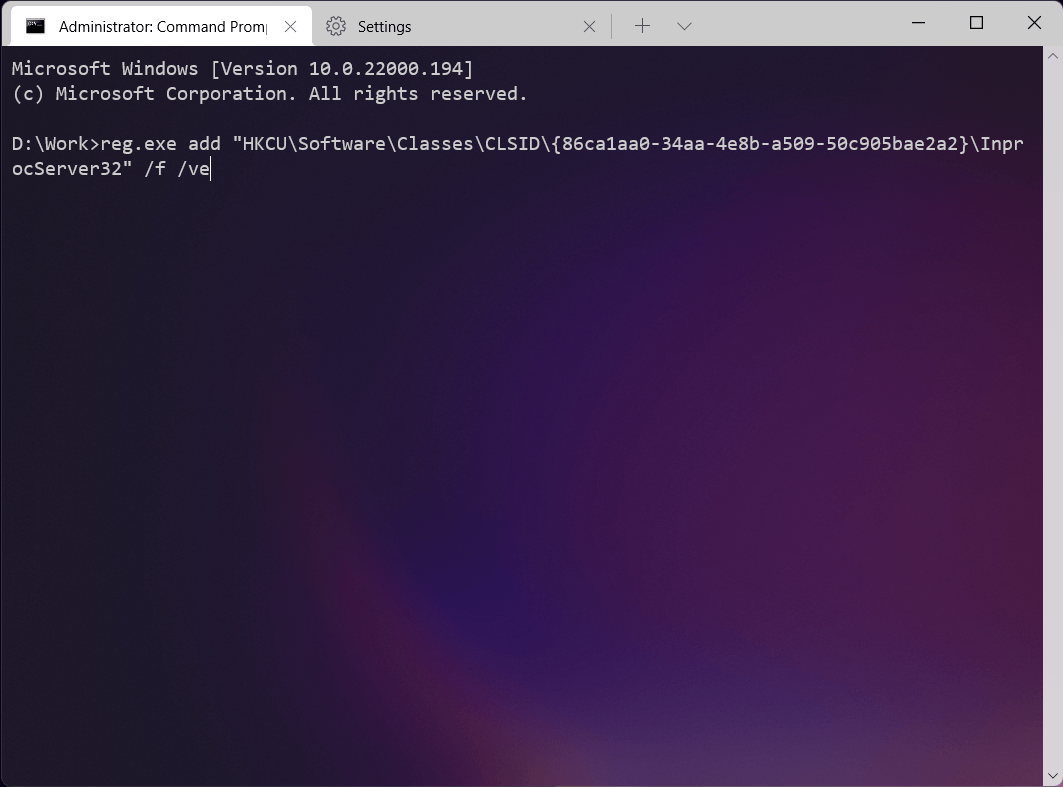
Copy the command below, paste it into the Windows Terminal window, and press Enter.
reg.exe add "HKCU\Software\Classes\CLSID\{86ca1aa0-34aa-4e8b-a509-50c905bae2a2}\InprocServer32" /f /ve -
Restart File Explorer or your computer for the change to take effect.
02
Return to the Modern Menu
To undo the change, open Windows Terminal and execute the command below:
reg.exe delete "HKCU\Software\Classes\CLSID\{86ca1aa0-34aa-4e8b-a509-50c905bae2a2}" /fRestart File Explorer or your computer for the change to take effect.